






Automate for Android in 2026: The Ultimate Guide to Smartphone Power
How many times a day do you repeat the exact same actions on your phone?
You wake up, toggle Wi-Fi, turn down the ringtone volume for work, launch your favorite podcast app as soon as your phone connects to your car’s Bluetooth, and manually dim the screen when it’s time for bed. Individually, these taps only take a few seconds. But added up across a year, you are wasting hours on mundane, repetitive micro-tasks.
That’s where Automate for Android in 2026 comes in.
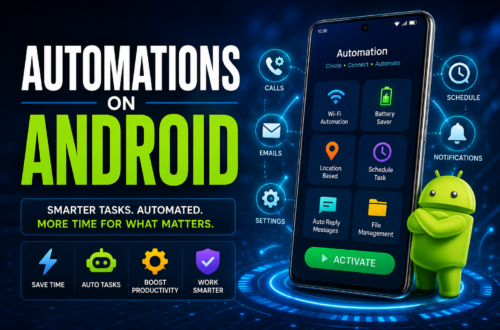
Android has always been celebrated for its open ecosystem and deep customization options. While smartphones have gotten smarter, true personal automation still requires the right tool. Automate—developed by LlamaLab—remains one of the most powerful, flexible, and visual automation tools available for Android devices today.
Whether you want to optimize your device’s battery life, create custom location-based triggers, or automate complex app interactions without writing a single line of code, this comprehensive guide will show you how to master Automate for Android in 2026.
What is LlamaLab Automate and How Does It Work?
Unlike traditional automation tools that rely on complex scripting or rigid text-based rules, Llamalab automate for android in 2026 uses an intuitive, flowchart-based visual engine.
Instead of typing out code, you build routines—known as “flows”—by connecting graphical blocks on a canvas. Each block represents a specific trigger, decision, or action.
[ Trigger: Connected to Car Bluetooth ] ➔ [ Action: Set Volume to 80% ] ➔ [ Action: Launch Spotify ]
The Anatomy of an Automate Flow
Every flow in Automate consists of three main components:
Triggers: The event that starts the flow. This could be a specific time of day, a change in battery level, connecting to a Wi-Fi network, receiving an SMS, or entering a geographic area (geofencing).
Decisions: Conditional logic that checks whether a specific requirement is met (e.g., “Is the phone charging?” or “Is it past 10 PM?”).
Actions: The actual task your phone performs when the trigger and decisions line up. Actions range from toggling system settings and sending automated replies to taking photos, logging sensor data, or performing app taps.
With over 400 building blocks available out of the box, you can build routines as simple as an automatic silent mode or as complex as an automated data backup pipeline.
Why You Need Automate for Android in 2026
Mobile operating systems have evolved significantly, but built-in routines (like Android’s native settings or Google Assistant Routines) are still limited. They often restrict what you can automate due to strict system permissions or lack support for third-party app interactions.
Here is why power users prefer Automate over basic default tools:
1. Visual Flowchart Logic
Text-based automation engines can get messy fast. When a complex routine breaks, troubleshooting conditional statements in standard scripts is frustrating. Automate’s flowchart approach lets you visually trace execution paths (“fibers”) in real time, making debugging effortless.
2. Deep System Access Without Root
In the past, advanced phone automation required rooting your device. In 2026, Automate leverages modern Android Accessibility APIs, notification listeners, and permission extensions. This allows you to interact with on-screen elements, read notifications, and adjust system settings seamlessly on unrooted devices.
3. Native Accessibility Automation
Need to bypass repetitive taps inside an app that doesn’t offer native API integration? Automate uses Accessibility Services to interact with user interface (UI) elements directly. This capability makes it simple to Automate clicks on Android, fill out input fields, and navigate multi-step app menus hands-free.
4. Lightweight and Battery Friendly
A common fear with background automation apps is battery drain. LlamaLab designed Automate to remain dormant until an event listener is fired. It consumes virtually zero background resources when waiting for triggers.
Best Automate Flows Android Power Users Should Try
If you are new to the app, building a flow from scratch can feel slightly overwhelming because of the sheer number of options available. Thankfully, you don’t have to start from scratch. You can build your own or download thousands of pre-made templates directly from the active in-app community section.
Here are some of the best automate flows Android users rely on for daily productivity:
1. The Smart Wi-Fi Switcher
The Problem: Leaving Wi-Fi turned on while driving or walking drains your battery, as your phone constantly scans for open networks.
The Flow Solution: Set up a trigger that checks your cell tower ID or location. When you leave your home radius, Automate turns off Wi-Fi automatically. When you return home, Wi-Fi toggles back on and connects instantly.
2. Intelligent Battery Protection
The Problem: Overcharging overnight or letting lithium-ion batteries sit at 100% heat for hours can degrade overall battery health.
The Flow Solution: Create a flow that monitors battery level during charging. When the charge reaches 80% or 85%, Automate plays a gentle chime, sends a notification to your smart display, or turns off a connected smart plug via a web hook request.
3. Automated Emergency Driving Mode
The Problem: Text messages arriving while you drive can be distracting and dangerous.
The Flow Solution: When your phone detects a connection to your vehicle’s Bluetooth audio system, Automate activates driving mode. If an incoming SMS arrives, it automatically reads the message aloud using text-to-speech and sends a quick reply: “I’m currently driving and will get back to you shortly.”
4. Nighttime Disconnect Routine
The Problem: Late-night notification alerts disrupt healthy sleep cycles.
The Flow Solution: At 10:30 PM (or when connected to your wireless charger at night), Automate sets the phone to Do Not Disturb, reduces screen brightness to minimum, disables Bluetooth, and lowers media volume. At 7:00 AM, it restores normal sound levels and turns DND off.
How to Get Started: Automate for Android in 2026 Download and Setup
Getting started takes less than five minutes. Follow these simple steps to install the app and configure your first automated workflow.
Step 1: Download the App
To ensure you receive official security updates and community features, perform an official Automate for android in 2026 download through the Google Play Store or LlamaLab’s official website.
Download Options: You can complete an Automate for android in 2026 free download directly from the Play Store. The free version gives you full access to all building blocks, allowing you to run flows with up to 30 blocks simultaneously. For unlimited blocks per flow, a one-time premium upgrade is available inside the app.
Step 2: Grant Essential Permissions
Because Automate manages device settings, it needs explicit permissions to operate smoothly. When you first launch the app, grant the following key permissions:
Location: Required for geofencing and Wi-Fi SSID triggers.
Accessibility Services: Crucial for detecting active apps and performing automated screen clicks.
Notifications: Needed to read incoming notifications or display ongoing status alerts.
Permissions Extensions: Depending on your Android version, install LlamaLab’s official helper extensions for sensitive toggles like mobile data or legacy system permissions.
Step 3: Build Your First Simple Flow (Step-by-Step)
Let’s build a basic “Mute Phone Face Down” flow to get comfortable with the editor:
Open Automate and tap the + (Plus) icon to create a new flow.
Tap Add Block and search for Device orientation. Place it on the canvas.
Tap the Device orientation block, set the orientation to Face down, and save it.
Add an Audio volume set block. Tap it, set the ringer volume to
0%, and save.Add another Device orientation block. Set this one to Face up.
Add a second Audio volume set block and set the volume back to
80%.Connect the blocks:
Connect the GO point of the Start block to the input of the first orientation block.
Connect the YES output of Face down to the
0%volume block.Connect the output of that volume block to the second orientation block (Face up).
Connect the YES output of Face up to the
80%volume block.Loop the final output back to the start.
Tap Save, give your flow a name (e.g., “Flip to Shhh”), and hit Start.
Congratulations! You just created a custom system feature using visual logic.
Advanced Techniques: How to Automate Clicks on Android
One of the standout reasons power users stick with Automate is its ability to interact directly with Android’s graphical interface. If an app lacks a widget, intent, or background API, you can simulate user touches directly.
To Automate clicks on Android, you use two key blocks inside the flow editor:
Interact Block: Allows you to inspect UI elements on screen (by text label, element ID, or UI class) and simulate actions like Click, Long Press, Scroll, or Focus.
Interact Touch Block: Allows you to simulate precise X/Y coordinate taps or screen swipes.
Example Use Case: Automated App Check-Ins
Imagine you use a habit-tracking app or work portal that requires tapping a check-in button every morning at 8:00 AM:
Create a flow triggered at
08:00 AM.Add an App start block to open your desired application.
Add a Delay block for 3 seconds to let the app load completely.
Add an Interact block. Set the action to Click and specify the target UI element text (e.g.,
"Check In").Add a Notification show block to confirm: “Successfully checked in for the day!”
By using element inspection rather than hardcoded screen coordinates, your click flows will remain reliable even if screen resolution changes or the device rotates.
Is Automate Safe and Secure?
Security is a paramount concern whenever an app asks for elevated system permissions. LlamaLab has maintained a strong track record regarding user privacy:
No Unnecessary Cloud Connections: Automate runs locally on your device. Your flows, sensitive personal data, and system logs are stored locally unless you explicitly configure a flow to upload files to your personal Google Drive or FTP server.
Transparent Block Structure: Because flows are open flowcharts, you can inspect every single block of a community flow before running it. There are no hidden background scripts or compiled code executions.
Granular Permissions: Automate only uses the permissions you explicitly grant. If a flow doesn’t need camera access, you don’t have to grant it.
Frequently Asked Questions (FAQs)
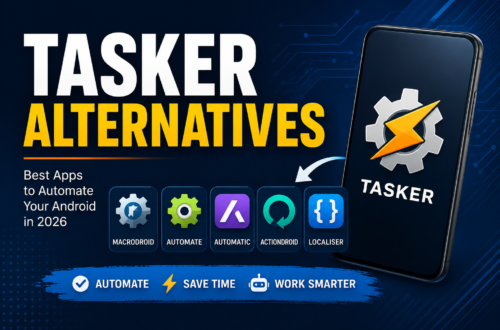
What is the difference between Automate, Tasker, and MacroDroid?
While all three are excellent Android automation apps, their design philosophies differ:
Automate: Uses visual flowcharts. Ideal for users who want complex logical branches without writing raw code syntax.
Tasker: Uses context/task lists. Extremely deep and flexible, but has a steeper learning curve for beginners.
MacroDroid: Uses a simple trigger-action list format. Very beginner-friendly, but less suitable for complex multi-branch logic.
Is the free version of Automate enough for daily use?
Yes! The Automate for android in 2026 free download grants access to all 400+ blocks and features. The only restriction in the free version is a limit of 30 blocks per running flow, which is more than enough for most everyday automation routines.
Do I need to root my phone to use Automate in 2026?
No, root is not required. Nearly all modern automation triggers and actions work seamlessly on non-rooted Android devices using standard Android APIs and Accessibility permissions.
Conclusion: Take Back Control with Automate for Android in 2026
Your smartphone should work for you—not the other way around. Stop manually flipping setting switches, closing background tasks, or tapping through repetitive app menus every single day.
By leveraging Automate for Android in 2026, you turn your smartphone into a truly automated assistant. Whether you want to build simple battery-saving routines, design hands-free driving workflows, or auto-click through tedious app tasks, LlamaLab’s visual flowchart engine gives you total control over your device.
Download the app, explore the community flow gallery, and start building your first workflow today. Once you experience true mobile automation, you will never want to go back to tapping manually!