






Why You Need to Unlock Android Automation Hidden Settings in 2026
Modern Android operating systems—from Google Pixel UI and Samsung One UI to Motorola MyUX—are packed with built-in artificial intelligence and background triggers. However, smartphone manufacturers tend to hide advanced controls inside sub-menus, developer options, or system activity launchers to keep the main settings menu clean for average users.
For tech-savvy users and productivity seekers, leaving these features hidden is a huge missed opportunity.
Key Benefits of Tapping Into Hidden Automation
Extended Battery Life: Automatically restrict power-draining background apps based on your daily usage habits.
Contextual Awareness: Program your phone to adjust audio, display, and security settings depending on your location, Wi-Fi network, or time of day.
Streamlined Driving Experience: Fine-tune dashboard displays, connectivity preferences, and app options when connected to your vehicle.
Distraction-Free Focus: Set up automated boundaries so app notifications don’t interrupt your meetings or sleep.
If you are looking for the Best android automation hidden settings 2026 has to offer, you don’t need to root your phone or compromise system security. You just need to know where to look.
Read More
The Best Native Android Automation Hidden Settings in 2026
You don’t always need complex third-party software to automate your phone. Android includes several powerful native automation tools right out of the box—if you know how to enable them.
1. Pixel Rules & System Routines
Google’s location-based Rules feature (and Samsung’s Modes & Routines) remains one of the most underutilized native automation features on modern smartphones.
Instead of remembering to flip your phone to vibrate when you arrive at work, you can set an automatic rule based on location or Wi-Fi network connectivity.
How to enable: Navigate to Settings > System > Rules (on Pixel) or Settings > Modes & Routines (on Samsung).
Best use cases:
Automatically enable Do Not Disturb when connecting to your office Wi-Fi network.
Switch your sound profile to Loud and turn on Bluetooth as soon as you leave your home address.
Launch a favorite music or podcast app whenever your phone connects to your car’s Bluetooth.
2. Smart Battery Throttling & Adaptive Charging
Forget manually turning on battery-saver mode when your phone hits 15%. Modern Android versions include intelligent background management that studies how you use your phone.
Adaptive Battery: Automatically identifies which apps you rarely use and restricts their background CPU and network access.
Battery Protection Limits: Hidden deep within battery settings, you can automate your phone to stop charging at 80% or 85% overnight, resuming full charge right before your morning alarm rings to prevent long-term battery degradation.
3. Notification Cooldown & Adaptive Vibration
Notification overload is real. Android addresses this with two clever automated audio settings:
Notification Cooldown: If a group chat blows up with 50 messages in two minutes, this setting automatically lowers the volume and vibration intensity of consecutive alerts from the same app.
Adaptive Vibration: Dynamically adjusts vibration strength depending on where your phone is placed. It vibrates stronger when stuffed in a jacket pocket and softer when resting flat on a glass desk.
For More Guide
Supercharge Your Drive with Android Auto 2026
Automating your mobile experience shouldn’t stop when you get behind the wheel. For many drivers, Android Auto 2026 serves as the central hub for navigation, media, and hands-free messaging. However, the default interface leaves several high-value performance settings hidden out of sight.
How to Unlock Android Auto Developer Mode
Just like standard Android, Android Auto features a hidden Developer Mode menu that unlocks advanced display and connection settings.
Open Settings on your phone and search for Android Auto.
Scroll down to the bottom of the screen until you see the Version number.
Tap Version repeatedly (around 10 times) until a prompt asks if you want to enable Developer Settings. Tap OK.
Tap the three dots in the top-right corner and select Developer settings.
Settings ➔ Android Auto ➔ Tap "Version" 10x ➔ Top Right Menu (⋮) ➔ Developer Settings
Essential Android Auto Hidden Features to Turn On
Once inside the developer menu, you can customize several key behaviors to dramatically improve your driving experience:
Force Video Resolution: By default, Android Auto negotiates screen resolution with your car’s head unit, which often results in blurry icons or fuzzy map screens on widescreen displays. You can force 1080p or higher resolutions for sharp visuals.
Force Day/Night Mode: Prevent maps from frantically flipping between light and dark themes every time you pass under a short highway overpass or tree canopy. You can lock the interface to follow your phone’s system schedule.
Toggle Wireless Android Auto: Wireless connectivity is convenient, but it drains battery quickly during short trips. You can turn off the wireless toggle so the system only activates when you physically plug into the USB cable.
Enable Unknown Sources: Checking this box allows customized, open-source media players and secondary navigation apps to appear on your dashboard launcher.
Whether you drive a brand-new electric vehicle or an older sedan with an aftermarket display, tweaking these settings ensures Android Auto 2026 runs at peak efficiency every time you start the engine.
Advanced Third-Party Tools: The APK Route
While native routines cover the basics, true power users often look beyond built-in menus. If you want granular control over every sensor, activity, and background trigger on your phone, downloading a trusted Android automation hidden settings 2026 apk utility opens up endless possibilities.
1. System Activity Launchers
An activity launcher is an app that exposes hidden “activities”—internal sub-screens that device manufacturers build into software but don’t expose in standard menus.
What they do: Apps like Activity Launcher or specialized Hidden Settings utilities allow you to create direct desktop shortcuts to deep system pages.
Examples of hidden screens you can access:
Notification history logs (to recover accidentally dismissed alerts).
Deep app standby and battery optimization menus.
Private DNS configurations for ad-blocking.
2. Tasker & Shizuku Integration
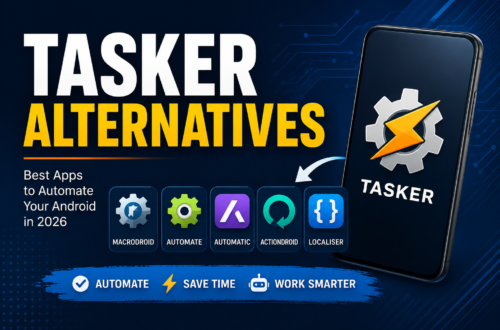
For deep automation, Tasker remains the gold standard in the Android community. When combined with Shizuku—a modern utility that grants system-level permissions without needing full root access—you can automate almost anything:
| Automation Trigger | Automated Result |
| Battery drops below 20% | Automatically switch display refresh rate from 120Hz down to 60Hz and disable ambient display. |
| Connect home Wi-Fi after 10 PM | Dim screen brightness to minimum, turn off mobile data, and set alarm volume to 80%. |
| Open camera app | Automatically turn screen brightness to maximum for accurate photo previewing. |
Safety Tip: When downloading any Android automation hidden settings 2026 apk or system launcher, always download directly from verified sources like the Google Play Store or trusted developer repositories like GitHub. Avoid modified or cracked APKs from unknown forums.
Step-by-Step: How to Safely Access & Configure Hidden Settings
Ready to set up your device? Follow this simple checklist to ensure you configure your system automations safely without causing system instability.
Enable Phone Developer Options:
Go to Settings > About Phone and tap Build Number 7 times. This unlocks system-level options like animation speed toggles and wireless debugging.
Set Up Basic System Rules First:
Start with built-in features like Pixel Rules or Samsung Modes & Routines. Verify that location-based triggers work reliably before introducing third-party tools.
Configure Android Auto Developer Options:
Unlock Android Auto hidden features by tapping the version number inside the app’s settings menu. Test forced video resolutions to ensure your car’s display doesn’t go dark.
Test Automations Individually:
When creating new automated routines, test them one at a time. Creating multiple overlapping rules (such as two conflicting location triggers) can cause battery drain or erratic behavior.
Mastering Your Android Automation Hidden Settings in 2026
Your smartphone should work for you, not the other way around. By taking advantage of native location rules, smart battery throttles, system activity launchers, and hidden car options, you can eliminate repetitive daily tasks and build a mobile experience that adapts seamlessly to your lifestyle.
Exploring android automation hidden settings in 2026 isn’t just about showing off cool tech tricks—it’s about saving time, preserving your phone’s lifespan, and enjoying a clutter-free digital world. Flip open your settings menu today, unlock those hidden options, and let your phone run itself.