






Automations on Android: A Complete Guide to Making Your Smartphone Work Smarter
Introduction: What Are Automations on Android?
Android smartphones are known for their flexibility and customization options. One of the most powerful features available to Android users is automation. If you’ve ever wondered how to make your phone automatically perform tasks without manual input, Android automation is the answer.
Automations on Android allow your device to perform actions automatically based on specific triggers, conditions, or schedules. Whether you want to turn on Wi-Fi when you get home, mute your phone during work hours, send automatic messages, back up files, or manage smart home devices, Android automation can save time and improve productivity.
In this guide, we’ll explore what Android automation is, why it matters, how it works, and the best ways to automate your Android experience.
The Key Question: Why Should You Use Automations on Android?
Many Android users perform the same tasks every day:
- Turning Wi-Fi on and off
- Enabling Bluetooth for headphones
- Switching to silent mode during meetings
- Opening favorite apps repeatedly
- Backing up photos manually
- Sending routine messages
These repetitive actions may seem small, but they consume time and attention throughout the day.
The main question users ask is:
“How can I make my Android phone perform routine tasks automatically?”
The answer lies in Android automation tools and built-in automation features that can handle these tasks without constant user interaction.
Automation helps users:
- Save time
- Reduce repetitive work
- Improve productivity
- Extend battery life
- Create personalized smartphone experiences
- Manage smart devices efficiently
Instead of controlling your phone constantly, automation allows your phone to work for you.
Understanding Android Automation: Context and Background
What Is Android Automation?
Android automation is the process of configuring your device to automatically execute actions when certain conditions are met.
A simple example is:
Trigger: Connect to your home Wi-Fi.
Action: Turn off mobile data.
The phone recognizes the condition and performs the action automatically.
Automation generally consists of three parts:
1. Trigger
The event that starts the automation.
Examples:
- Time of day
- Location
- Battery percentage
- App launch
- Bluetooth connection
- Wi-Fi connection
2. Condition
Additional requirements that must be met.
Examples:
- Battery above 20%
- Connected to specific network
- Weekday only
3. Action
The task performed automatically.
Examples:
- Enable silent mode
- Send a message
- Launch an application
- Turn on flashlight
- Backup files
Why Android Is Ideal for Automation
Android has always been more open than many other mobile operating systems.
This openness allows:
- Advanced customization
- Background task execution
- Integration with third-party apps
- Smart device control
- System-level automation
As a result, Android has become the preferred platform for users who want complete control over their devices.
Common Android Automation Examples
Let’s look at practical automation scenarios.
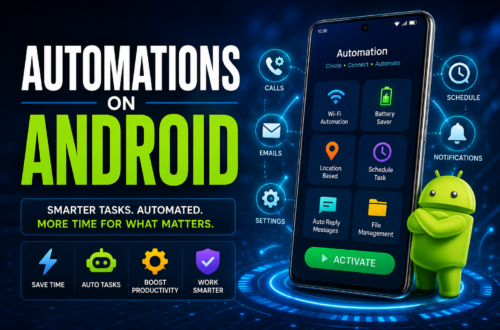
1. Automatic Wi-Fi Management
Your phone can:
- Turn Wi-Fi on when arriving home
- Turn Wi-Fi off when leaving
Benefits:
- Saves battery
- Reduces manual work
2. Smart Silent Mode
Set your device to:
- Enable silent mode during work hours
- Disable silent mode after work
Benefits:
- Avoid interruptions
- Maintain professionalism
3. Battery Saving Automation
When battery reaches 20%:
- Lower brightness
- Disable Bluetooth
- Turn off location services
Benefits:
- Extends battery life
4. Driving Mode Automation
When connected to your car’s Bluetooth:
- Launch navigation app
- Enable Do Not Disturb mode
- Read notifications aloud
Benefits:
- Safer driving experience
5. Automatic Photo Backup
Every day or when connected to Wi-Fi:
- Upload photos to cloud storage
Benefits:
- Prevents data loss
- Saves storage management effort
6. Morning Routine Automation
At a specific time:
- Disable airplane mode
- Show weather forecast
- Open news application
- Start music playlist
Benefits:
- Streamlined morning experience
Best Android Automation Apps
Several apps make Android automation easy.
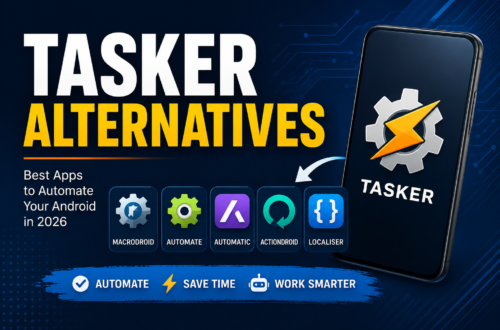
Tasker
Tasker is one of the most powerful Android automation tools available.
Features:
- Hundreds of triggers
- Advanced customization
- Plugin support
- System-level automation
Ideal for:
- Power users
- Tech enthusiasts
MacroDroid
MacroDroid provides a simpler interface.
Features:
- Easy setup
- Visual workflow creation
- Beginner-friendly design
Ideal for:
- New automation users
- Everyday smartphone owners
Automate
Automate uses flowchart-style automation.
Features:
- Visual automation blocks
- Complex workflows
- User-friendly design
Ideal for:
- Intermediate users
IFTTT
IFTTT stands for “If This Then That.”
Features:
- Connects apps and services
- Smart home integration
- Cloud-based automation
Examples:
- Save Instagram photos automatically
- Turn on smart lights when arriving home
How to Start Using Android Automation
Step 1: Identify Repetitive Tasks
Ask yourself:
- What actions do I perform every day?
- What tasks feel repetitive?
- Which settings do I change frequently?
Make a list.
Step 2: Choose an Automation Tool
Beginners should start with:
- MacroDroid
- IFTTT
Advanced users may prefer:
- Tasker
- Automate
Step 3: Create Your First Automation
Example:
Trigger:
Connect to home Wi-Fi.
Action:
Disable mobile data.
This simple automation immediately improves convenience.
Step 4: Test and Refine
After creating automation:
- Test different scenarios
- Monitor battery usage
- Adjust settings if needed
Automation becomes more effective through refinement.
Advanced Android Automation Ideas
Once comfortable with basic automation, users can explore advanced workflows.
Smart Home Integration
Control:
- Lights
- Thermostats
- Security cameras
- Smart plugs
Automatically based on:
- Location
- Time
- Voice commands
Productivity Automation
Automatically:
- Open work apps during office hours
- Block distracting apps
- Enable focus mode
Benefits:
- Increased productivity
- Better time management
Health and Fitness Automation
Examples:
- Launch fitness apps at workout times
- Track water intake reminders
- Enable workout mode automatically
Benefits:
- Supports healthy habits
File Management Automation
Automatically:
- Organize downloads
- Backup documents
- Delete temporary files
Benefits:
- Cleaner device storage
Benefits of Android Automation
Saves Time
Automating routine actions reduces daily effort.
Improves Efficiency
Tasks happen instantly without user intervention.
Reduces Errors
Automation ensures consistency.
Enhances Productivity
Users can focus on important activities.
Better Battery Management
Power-saving actions can occur automatically.
Personalized Experience
Every device can behave differently according to user preferences.
Potential Challenges of Android Automation
While automation is powerful, users should be aware of some challenges.
Over-Automation
Too many automations can become confusing.
Solution:
Start small and add automations gradually.
Battery Usage
Some automation apps run in the background.
Solution:
Use trusted apps and monitor battery impact.
Permission Requirements
Automation apps may request access to:
- Location
- Notifications
- Accessibility services
Solution:
Review permissions carefully before granting access.
The Future of Android Automation
Artificial intelligence is making automation smarter.
Future Android automation may include:
- Predictive actions
- Context-aware settings
- AI-generated workflows
- Personalized suggestions
- Voice-driven automation
As AI evolves, Android devices will become even more capable of anticipating user needs and performing tasks automatically.
Conclusion
Android automation is one of the most useful features available to smartphone users today. By automating repetitive tasks such as Wi-Fi management, silent mode scheduling, file backups, and smart home control, users can save time, improve productivity, and create a more personalized mobile experience.
Whether you’re a beginner using MacroDroid or an advanced user building complex workflows with Tasker, Android automation can transform how you interact with your smartphone. Start with simple automations, learn what works best for your daily routine, and gradually build a smarter, more efficient Android experience.
The goal of Android automation is simple: let technology handle repetitive tasks so you can focus on what matters most.
Frequently Asked Questions (FAQ)
1. What is Android automation?
Android automation is the process of making your phone perform tasks automatically based on triggers, schedules, or conditions without requiring manual input.
2. Is Android automation safe?
Yes, Android automation is generally safe when using trusted apps and reviewing requested permissions carefully.
3. What is the best Android automation app?
Tasker is considered the most powerful option, while MacroDroid is often recommended for beginners.
4. Can Android automation save battery life?
Yes. Automation can disable unnecessary features like Bluetooth, Wi-Fi, and location services when not needed, helping conserve battery power.
5. Do I need root access for Android automation?
No. Most automation features work without root access, although root can unlock additional advanced capabilities.
6. Can I automate text messages on Android?
Yes. Many automation apps allow users to schedule messages or send automatic responses based on specific triggers.
7. Can Android automation work with smart home devices?
Yes. Apps like IFTTT and Google Home integrations allow Android devices to automate smart lights, thermostats, cameras, and other connected devices.