






How to Automate Android Without Root: The Ultimate Guide 2026
For years, power users shared a universal truth: if you wanted to truly automate your Android phone, you had to root it. Rooting gave automation apps total control over the operating system, letting them toggle GPS, flip airplane mode, kill background processes, and simulate screen touches while you slept.
But in 2026, rooting your phone comes with severe penalties. It breaks banking apps, trips Google’s strict security APIs, voids warranties, and exposes your personal data to massive security risks.
Fortunately, Android’s developer ecosystem has evolved. Today, you can achieve near-root levels of automation completely stock. By combining modern consumer apps with a couple of native developer tools, you can transform your device into an autonomous assistant.
Here is the ultimate guide to automating Android without root.
The Landscape of Non-Root Android Automation
Modern Android automation relies on three pillars. Depending on how deep you want to go, you can choose the level of complexity that fits your needs:
Standard Non-Root Apps: Apps that use native Android permissions (like Accessibility and Notification access) to trigger simple tasks.
The ADB Hack System: Giving standard apps elevated privileges via a one-time computer connection.
The Shizuku Framework: The holy grail of modern non-root customization, utilizing system-level developer APIs directly on your phone.
1. Top 3 Non-Root Automation Apps
If you want a simple “plug-and-play” experience without touching a computer, these three apps dominate the Android ecosystem.
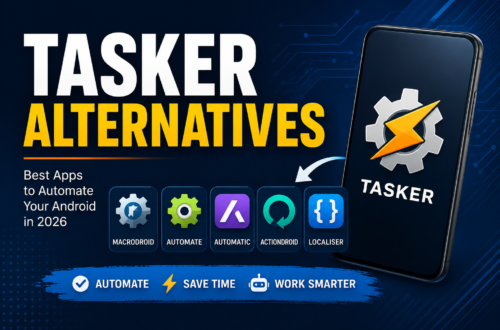
MacroDroid (Best for Beginners & Intermediates)
MacroDroid is arguably the most user-friendly automation app available. It uses a simple Trigger → Action → Constraint logic model.
Trigger: What happens (e.g., You connect to your car’s Bluetooth).
Action: What the phone does (e.g., Turn on GPS, launch Spotify, read text messages aloud).
Constraint: Optional rules (e.g., Only do this between 9 AM and 5 PM).
It features a massive community template store where you can download and use thousands of pre-made macros with a single tap.
Tasker (Best for Power Users)
Tasker is the undisputed heavyweight champion of Android automation, though it features a notoriously steep learning curve. While it used to require root for advanced tweaks, its developer has spent years building workarounds. Tasker allows you to build entire standalone mini-apps, handle complex loops, and parse deep data variables without root.
Automate (Best for Visual Thinkers)
Automate by LlamaLab takes a completely different visual approach. Instead of lists or rules, you build automations using flowcharts. You drag and drop visual blocks (like “Is Wi-Fi connected?”) and connect them with lines to create intricate logic gates.
2. Elevating Privileges: The “ADB Hack” Explained
Out of the box, Google blocks standard apps from changing sensitive system settings (like toggling Airplane mode or modifying secure system logs) to protect user security. However, you can bypass these limits using ADB (Android Debug Bridge).
By executing a simple command from a computer, you grant an automation app permission to access Android’s WRITE_SECURE_SETTINGS. This does not root your phone or modify system files; it simply flips an official developer switch.
Step-by-Step Guide: Granting Secure Settings Permissions
To unlock the full potential of apps like MacroDroid or Tasker, follow these steps:
Once executed, your automation app can seamlessly control deeper system toggles without ever needing root access.
3. Shizuku: The Ultimate Root Alternative
If you want absolute control without keeping your phone tethered to a computer, you need Shizuku.
What is Shizuku? It is an open-source utility that allows third-party apps to directly utilize Android’s system-level developer APIs using Wireless Debugging. It essentially acts as a secure intermediary, providing root-like power safely.
Many premium automation apps integrate natively with Shizuku to simulate clicks, manage apps, and modify global settings entirely on-device.
Setting Up Shizuku (Completely Cable-Free)
If you are on Android 11 or newer, you can set up Shizuku entirely on your phone using a local Wi-Fi connection:
Download Shizuku from the Google Play Store.
Ensure your phone is connected to a stable Wi-Fi network.
Go to Developer Options on your device and turn on Wireless Debugging. Tap into the menu and select “Pair device with pairing code.”
Open Shizuku, tap Pairing, enter the pairing code from your notification drawer, and click link.
Go back to Shizuku’s main screen and tap Start.
Shizuku will now run a local ADB server directly inside your phone’s memory. You can now grant apps like MacroDroid or specialized shell tools permission to run background commands automatically.
Practical Ideas to Try Right Now
Unsure where to start? Here are three powerful automation workflows that require absolutely zero root access:
1. The Smarter Battery Saver
Trigger: Battery drops below 30% AND phone is not connected to home Wi-Fi.
Actions: Lower screen brightness to 20%, change screen timeout duration to 15 seconds, turn off location services, and force-close heavy social media apps running in the background.
2. Hands-Free Car Assistant
Trigger: Phone connects to Car Bluetooth.
Actions: Turn UI text-to-speech engine on, launch your preferred navigation app, read incoming SMS/WhatsApp messages aloud automatically, and reply with a pre-written text (“I’m driving right now”) if a call is missed.
3. Automatic Nighttime Lock-Down
Trigger: Time hits 11:00 PM AND phone is plugged into a charger.
Actions: Enable Do Not Disturb (DND), disable mobile data or Wi-Fi to eliminate late-night background notifications, and turn on the Android “Eye Comfort” shield.
Side-by-Side Comparison: Root vs. Non-Root Automation
Summary: Is Non-Root Automation Worth It?
Absolutely. The golden era of needing to flash custom ROMs and risk bricking hardware just to make an Android device “smart” is over.
By leveraging user-friendly apps like MacroDroid, unlocking secure permissions via ADB, and employing the Shizuku framework, you gain a massive suite of automation capabilities. Your phone can dynamically adapt to your location, battery health, and daily habits, while keeping your device fully secure, under warranty, and perfectly capable of running everyday secure apps.